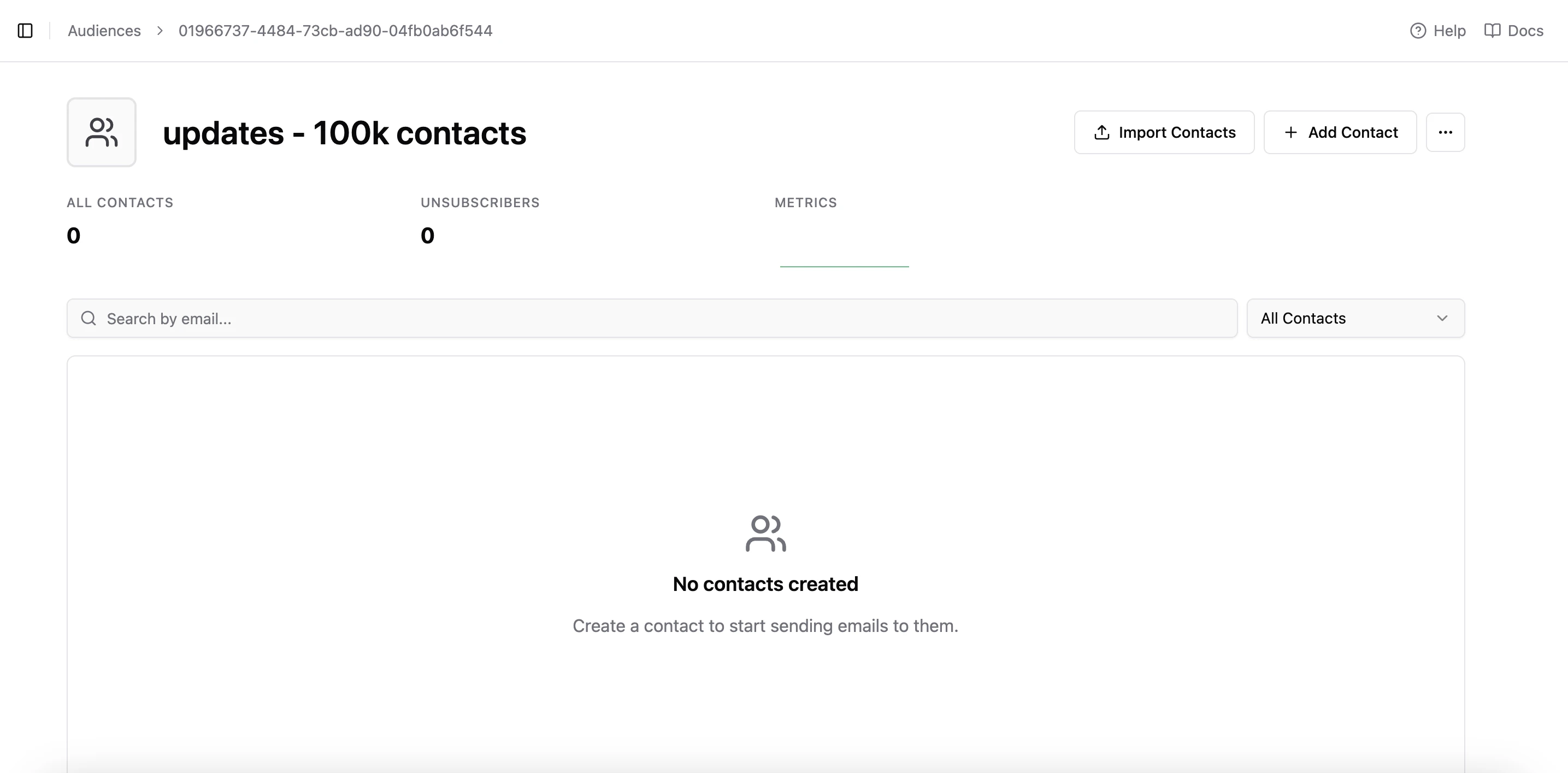
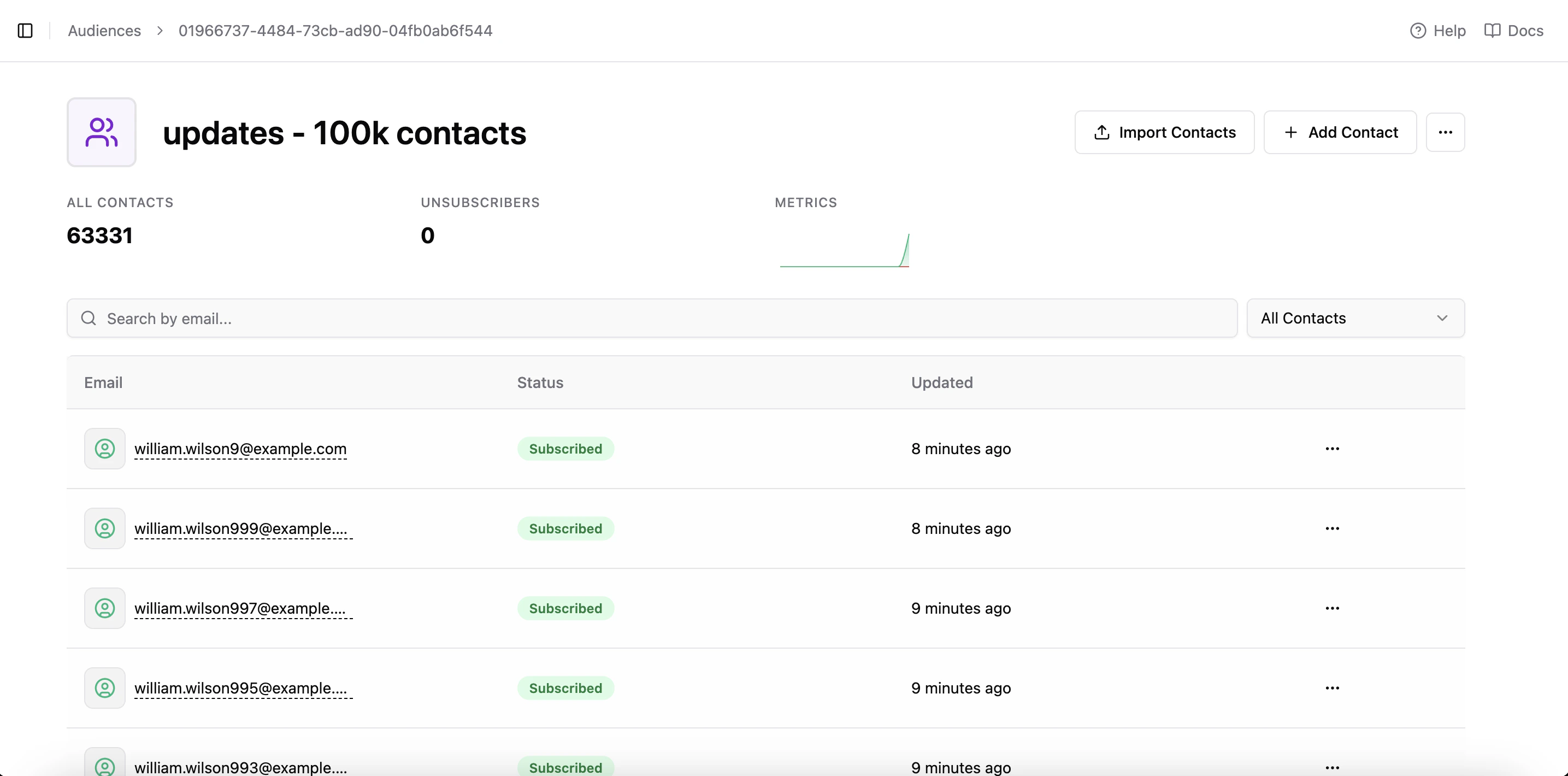
You can import your audience from a CSV file or add them manually.For example, you can easily import 100k subscribers from a CSV file. Note that if you have duplicate emails or broken rows in the CSV file, they will be ignored. For example, I import 100k subscribers, and the duplicate emails are ignored.
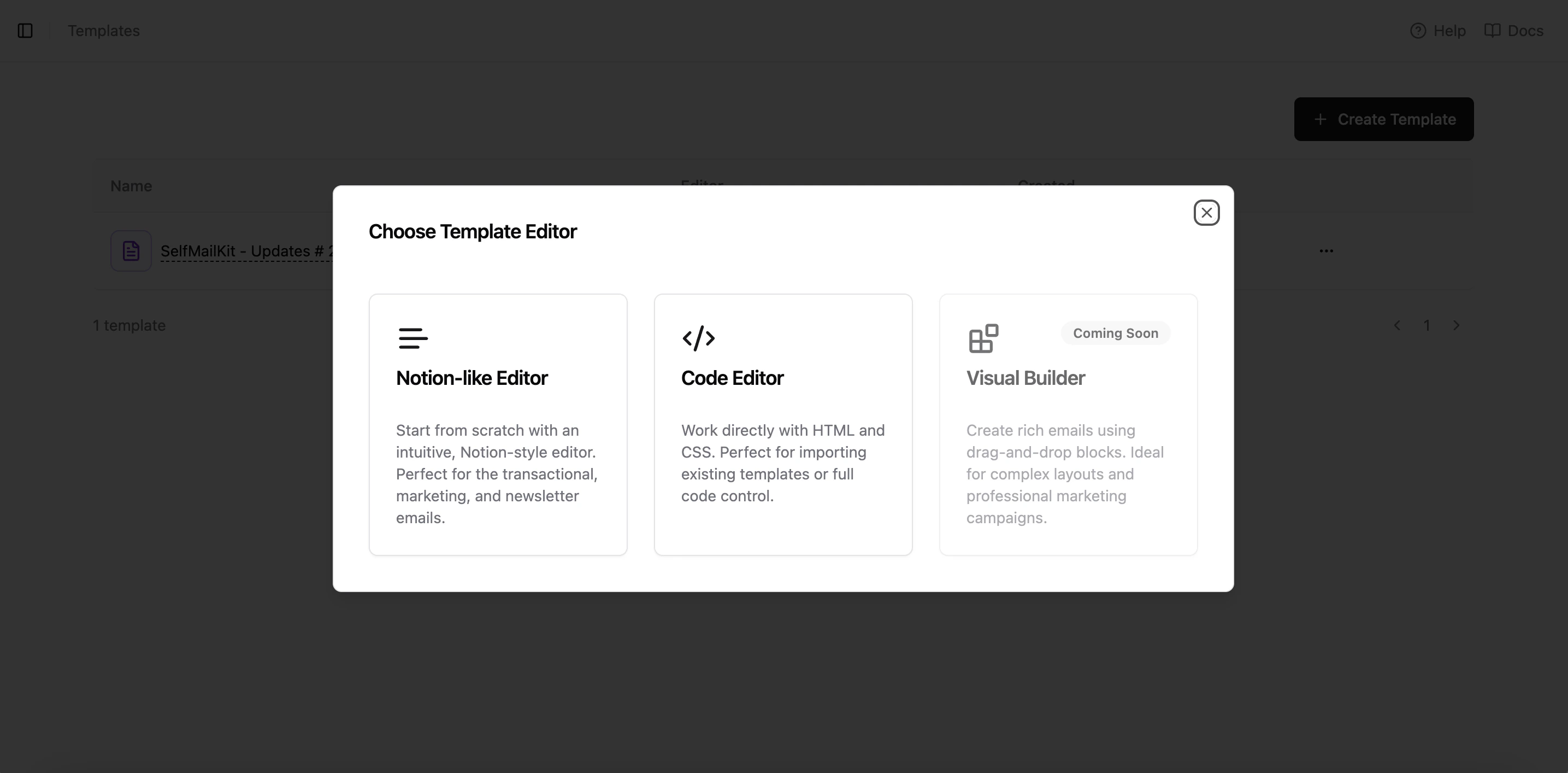
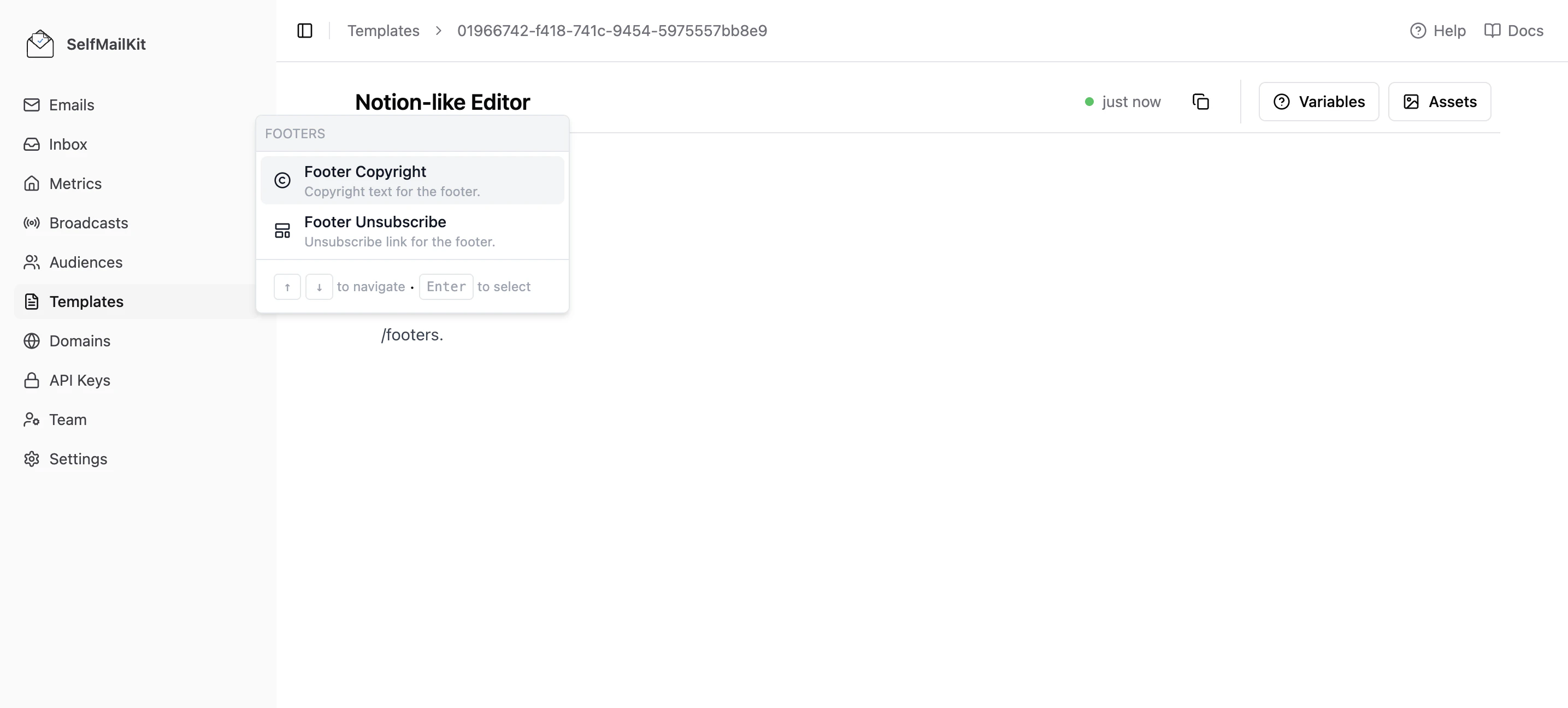
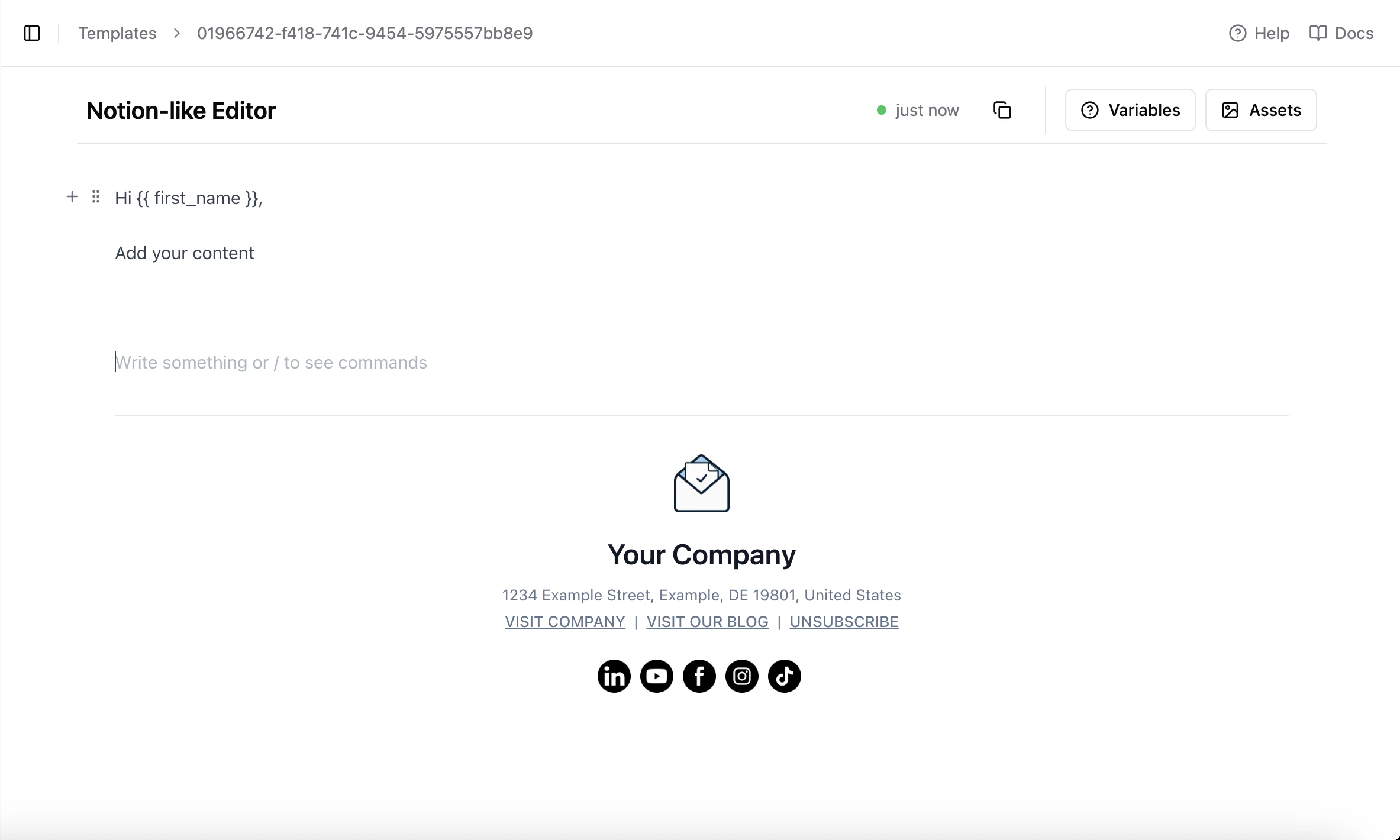
Currently, MailDiver supports two types of template editors:a. Notion-Like Editor.Start from scratch with an intuitive, Notion-style editor. It is perfect for transactional, marketing, and newsletter emails and has many components like text, images, buttons, icons, an unsubscribe footer, etc.b. Code Editor.Work directly with HTML and CSS. This is perfect for importing existing templates or full code control. For example, you can import the HTML code from React Email Templates.c. Visual Editor.This is a drag-and-drop editor. It’s still under development and will be available soon.d. Include an unsubscribe link in the footer.If you use the Notion-style editor, you can include an unsubscribe link in the footer by typing /footer in the editor.If you use the Code Editor, just add it as a variable - {{ unsubscribe_url }}.
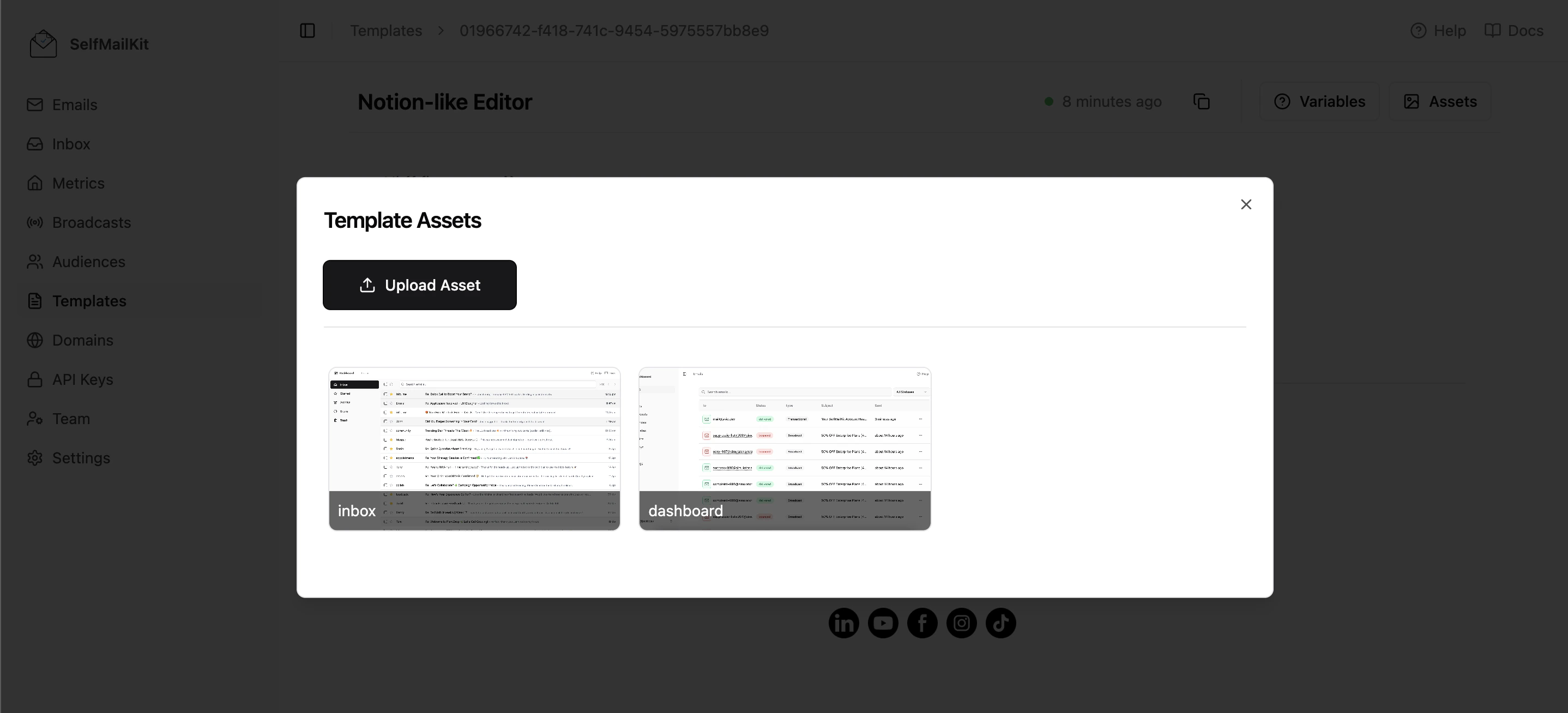
When you send a broadcast email, MailDiver will automatically add the unsubscribe link to the footer for each recipient. With one click, the recipient can unsubscribe from the email.e. Upload a logo, image, or file.In the template editor, you can upload a logo, image, or file and use the URL of the uploaded file in the email. Click the Upload Asset button to upload a file.
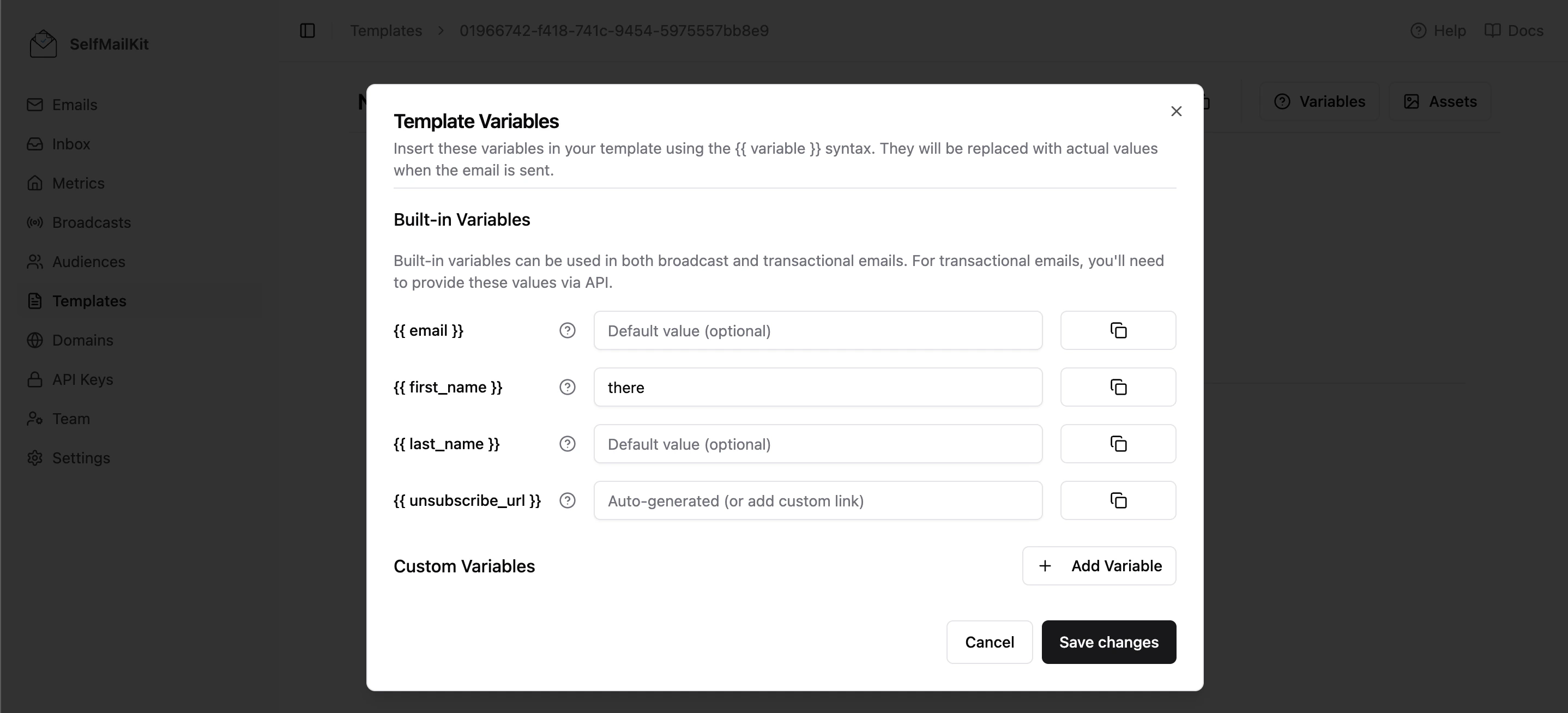
MailDiver provides powerful variable support to personalize your emails. You can access these variables in both the Visual and Code editors.These are the predefined variables:
{{ email }}: The recipient’s email. Always available.
{{ unsubscribe_url }}: The unsubscribe URL for the recipient. Always available.
{{ first_name }}: The recipient’s first name. It is only available if you have it in the audience. If you import the audience from a CSV file, and it has a column with the “first name”, “first name”, “name”, “first name”, “given name”, and “given_name” it will be available.
If you manually (or via API) add a contact, you can add the first name and/or last name. Adding a default value in case the variable is unavailable is always a good idea.
Hi {{ first_name }}
If the first name is available, it will be used.
Hi John
If it’s not available, the default value will be used:
Hi there
{{ last_name }}: The recipient’s last name. It is only available if you have it in the audience. If you import the audience from a CSV file, and it has a column with the “last name”, “lastname”, “lname”, “last_name”, “surname”, “family name”, “family_name”, it will be available.
It follows the same logic as the first name.
The custom variables are only used for the transactional emails where you
provide the variables in the API. For more information, read
here.
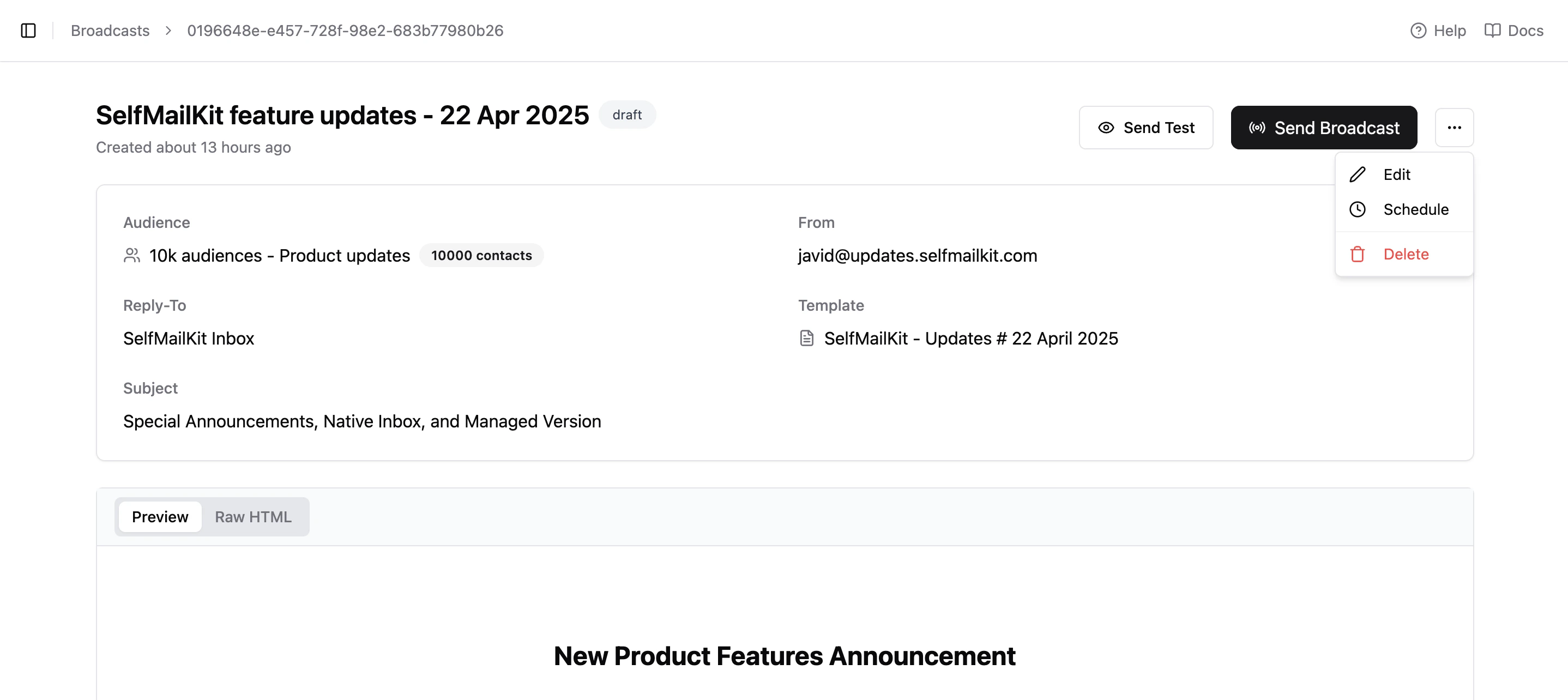
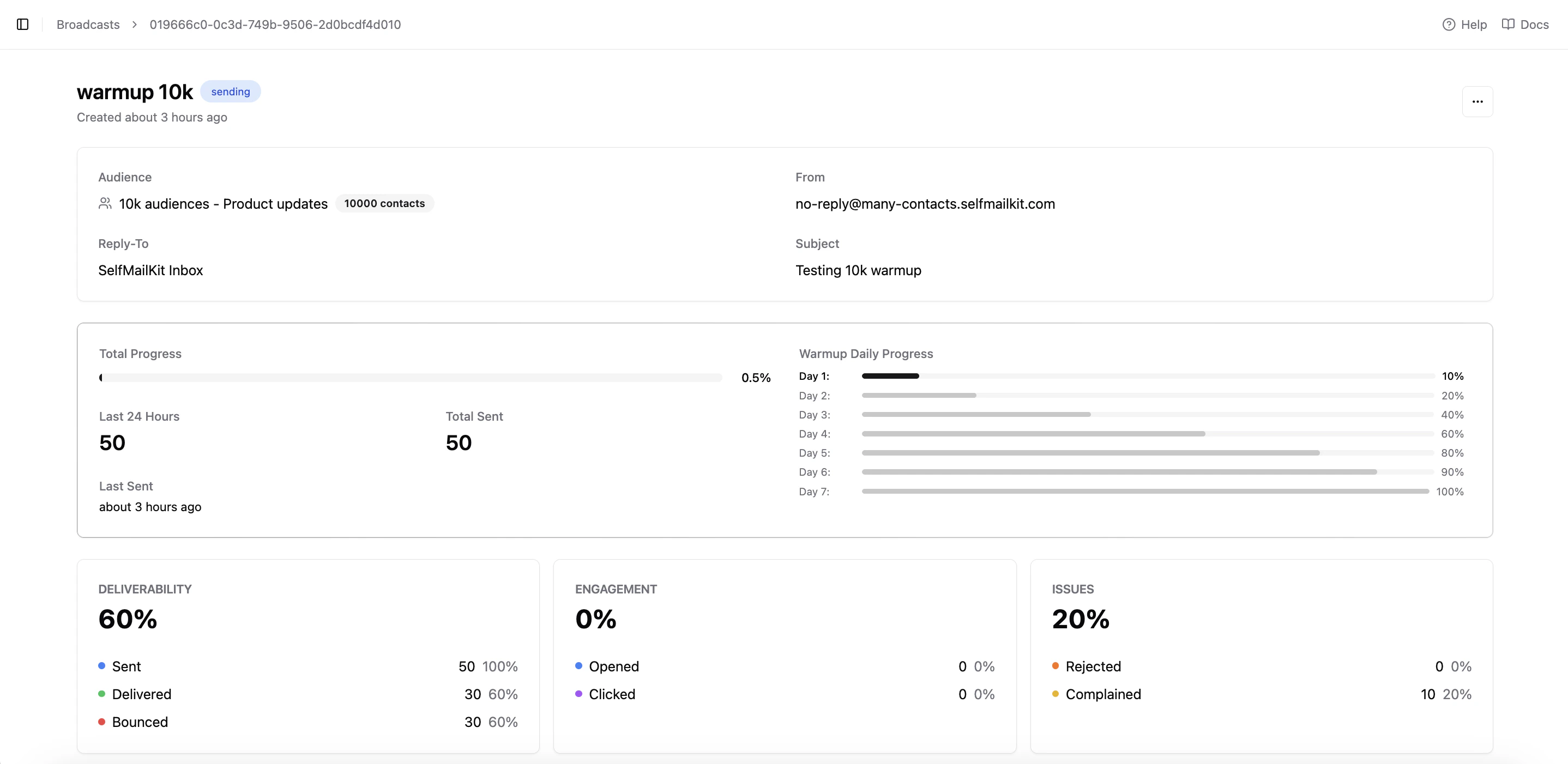
After completing the previous steps, it’s time to create and send a broadcast.Go to the broadcasts page and click the Create Broadcast button.It will create a draft broadcast. You can edit it, send a test email, schedule it, or send it immediately.After reviewing the broadcast, it’s time to send it.Don’t worry about the size of the audience. If the domain is not warmed up, MailDiver will automatically warm it up. It will send the emails in small batches and gradually increase the number of emails sent daily. For example, if you send 10k emails (or 100k emails), it will look like this:
The warm-up process is different for each audience. Some audiences might
require even 30 days to warm up. It’s handled automatically by MailDiver.
If you believe your domain is already warmed up, you can disable the warm-up
process in the domain settings. Please be careful with this because if the
domain is not warmed up, your emails might end up in the spam folder.
That’s it! After the broadcast is sent, you can analyze the results. You can also go to the emails page and see the emails that were sent, delivered, opened, clicked, and bounced.